

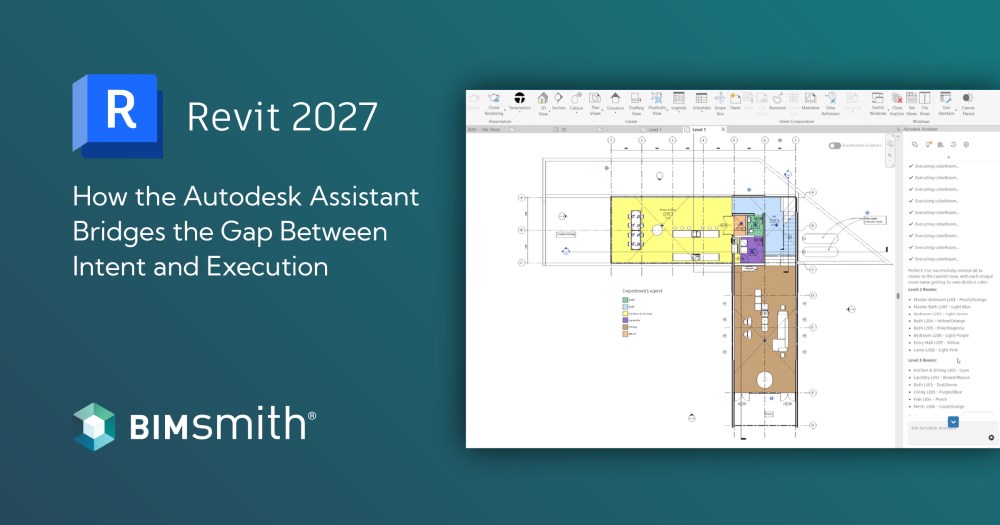
The BIMsmith team tested the Revit 2027's new Autodesk Assistant feature with five real workflows.
The gap between knowing what needs to happen in Revit and making it happen has always been friction. Dialog boxes, menu navigation, multi-step setup sequences that slow down experienced users and stop newer ones entirely. Revit 2027 introduces a tool designed to close that gap. The Autodesk Assistant is a large language model built directly into the application, connected to Revit's API, capable of querying the model, planning a sequence of actions, and executing them from a plain-language instruction.
The BIMsmith team put it through five scenarios to find out how far that capability goes.
What Is Autodesk Assistant?
The Autodesk Assistant is a first-class panel inside the Revit 2027 interface, not a help chatbot and not a separate add-in. It connects to Revit's API directly. When given an instruction, it calls Revit functions: querying elements, reading parameters, creating objects, modifying properties, and executing multi-step sequences, all from a plain-language prompt.
The assistant makes its process transparent. Each tool call appears on screen as it runs (getRooms, createSheet, exportViewsToPdf, setRoomName) with a checkmark as each one completes. Changes appear in the model in real time.
Beyond the main chat interface, the assistant includes two additional features worth knowing about. The Prompt Library lets users save and reuse prompts across conversations, accessible from the dropdown at the top of the panel. A separate Insights tab delivers proactive workflow suggestions based on usage patterns, flagged with a yellow dot in the dropdown when a new insight is available. Both are part of the same panel and require no additional setup.
The assistant also knows its limits. When a request falls outside its current toolset, it says so clearly, offers alternatives where possible, and provides manual instructions for the rest. That transparency is what makes it practically useful.
Five Things Tested with the Revit 2027 Autodesk Assistant
The BIMsmith team put this through its paces across five real project scenarios: view export, room visualization, batch parameter editing, sheet assembly, and model querying with schedule creation. Here is what was found.
1. View Export
The prompt: "Export this view as a pdf"
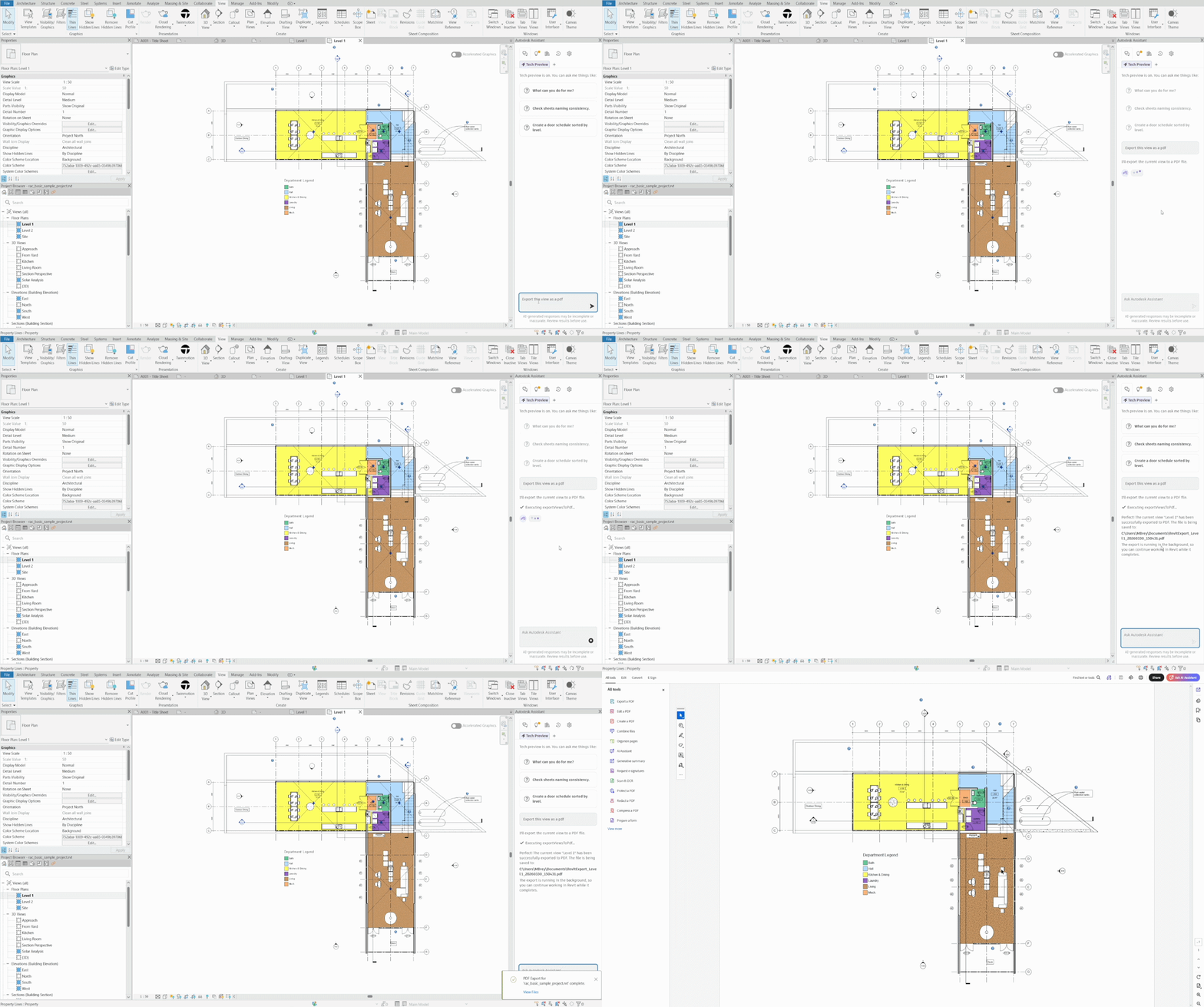
In native Revit, exporting a view to PDF means opening the print dialog, selecting a printer, configuring paper size and orientation, choosing views, and specifying a file path. With the Autodesk Assistant, the entire interaction is a single sentence. The assistant triggered a background task so Revit remained fully responsive. The file was saved within seconds, with the full path returned in the panel.
For teams running documentation sprints, the compounding effect of eliminating dialog navigation on every export is real. This is the floor for what the assistant can do, and it clears it easily.
Key takeaway: The simplest interactions are also the most immediate wins. Routine export tasks that require several steps of dialog navigation collapse to a single typed instruction.
2. Room Color-Coding
The prompt: "Create a color scheme for rooms in this view. I want it by name"
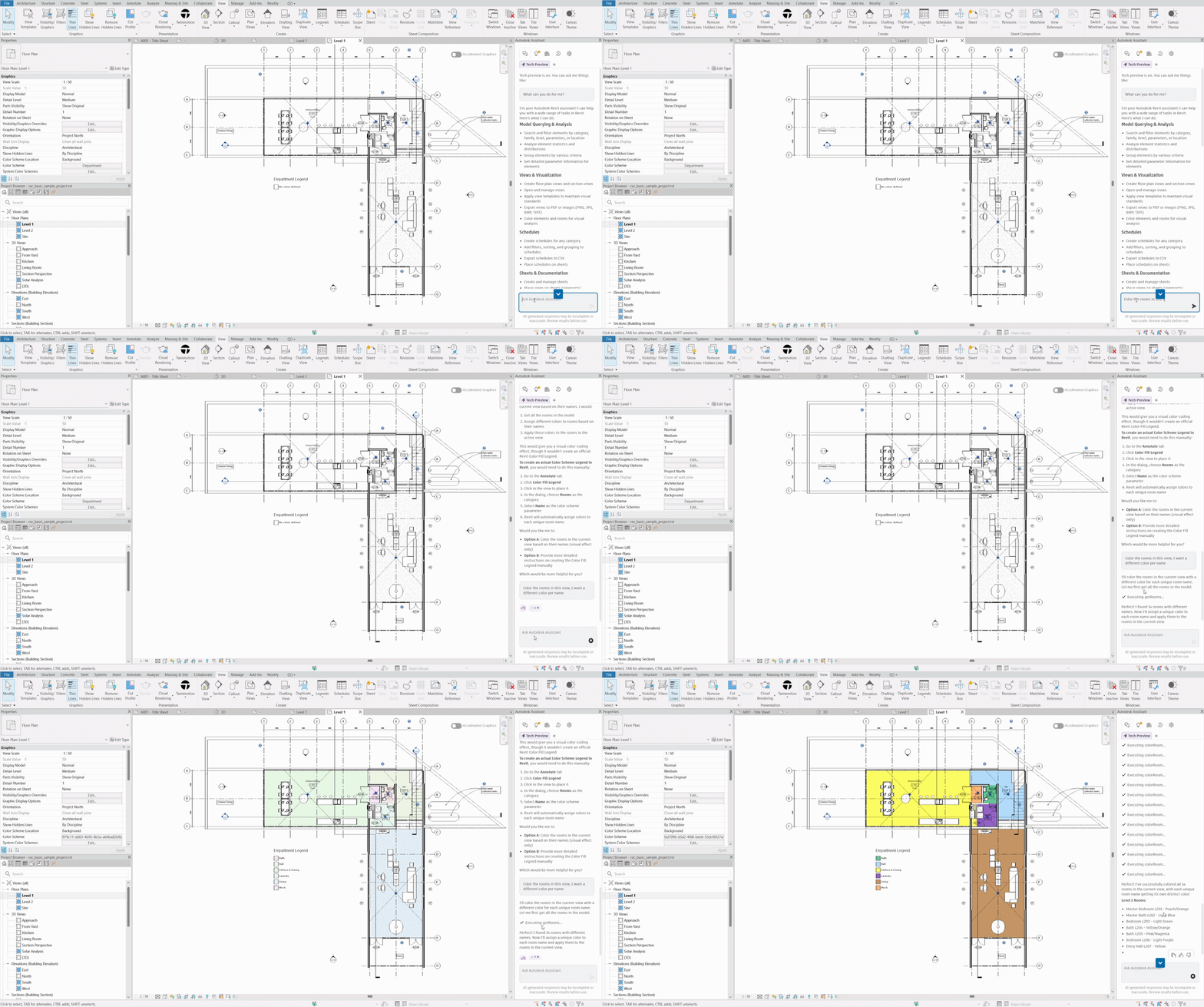
Color-coding a floor plan by room data is one of the most commonly requested visualization tasks on any project. In native Revit, it requires setting up a Color Fill Scheme, applying it to a view, and placing a legend.
The assistant was upfront immediately: its approach would produce a visual color-coding effect on the rooms themselves, but it cannot create the official Revit Color Fill Legend annotation object. It offered two clear options and waited for a direction. Given the instruction to proceed with the visual approach, it queried all 16 rooms, assigned a distinct color to each unique room name, and applied them to the view. The floor plan went from a monochrome line drawing to a spatially legible, color-differentiated plan as the operation completed.
Key takeaway: The assistant is direct about what it can and cannot do before executing, not after. That honesty prevents wasted steps and makes it a reliable tool rather than an unpredictable one.
3. Batch Parameter Update
The prompt: "Change all the room names so that they are translated to Spanish and add a new color scheme"
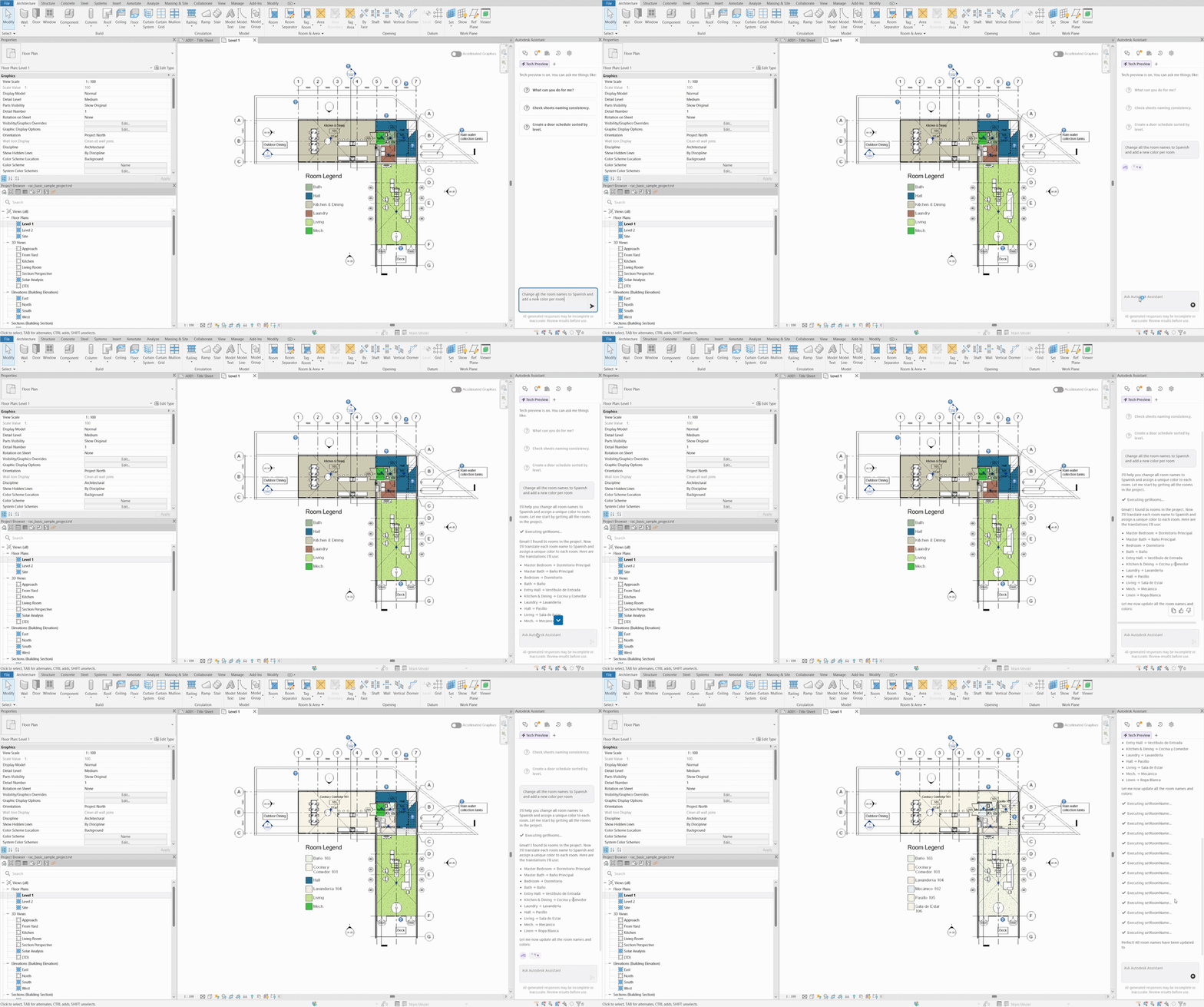
The assistant handled both prompts without needing to be asked twice. It queried all 16 rooms, determined the correct Spanish translations, applied them simultaneously, then applied a new color scheme to the updated view. A complete change log came back for verification: Master Bedroom to Dormitorio Principal. Master Bath to Baño Principal. Kitchen and Dining to Cocina y Comedor. All 16 rooms updated in a single operation, with no spreadsheet, no Dynamo script, and no manual editing.
The implications extend well beyond language. Any parameter that can be described in natural language can be updated at scale: phasing assignments, finish specifications, occupancy classifications, room data for FF&E coordination. For teams working through late-stage design changes where coordinated updates are frequent, this is a significant capability.
Key takeaway: The assistant handles multi-intent instructions without requiring them to be broken into separate prompts. That matters for speed, but it also matters for how naturally architects can work with it.
4. Sheet Assembly
The prompt: "Create a new sheet per level, add the floor plans"
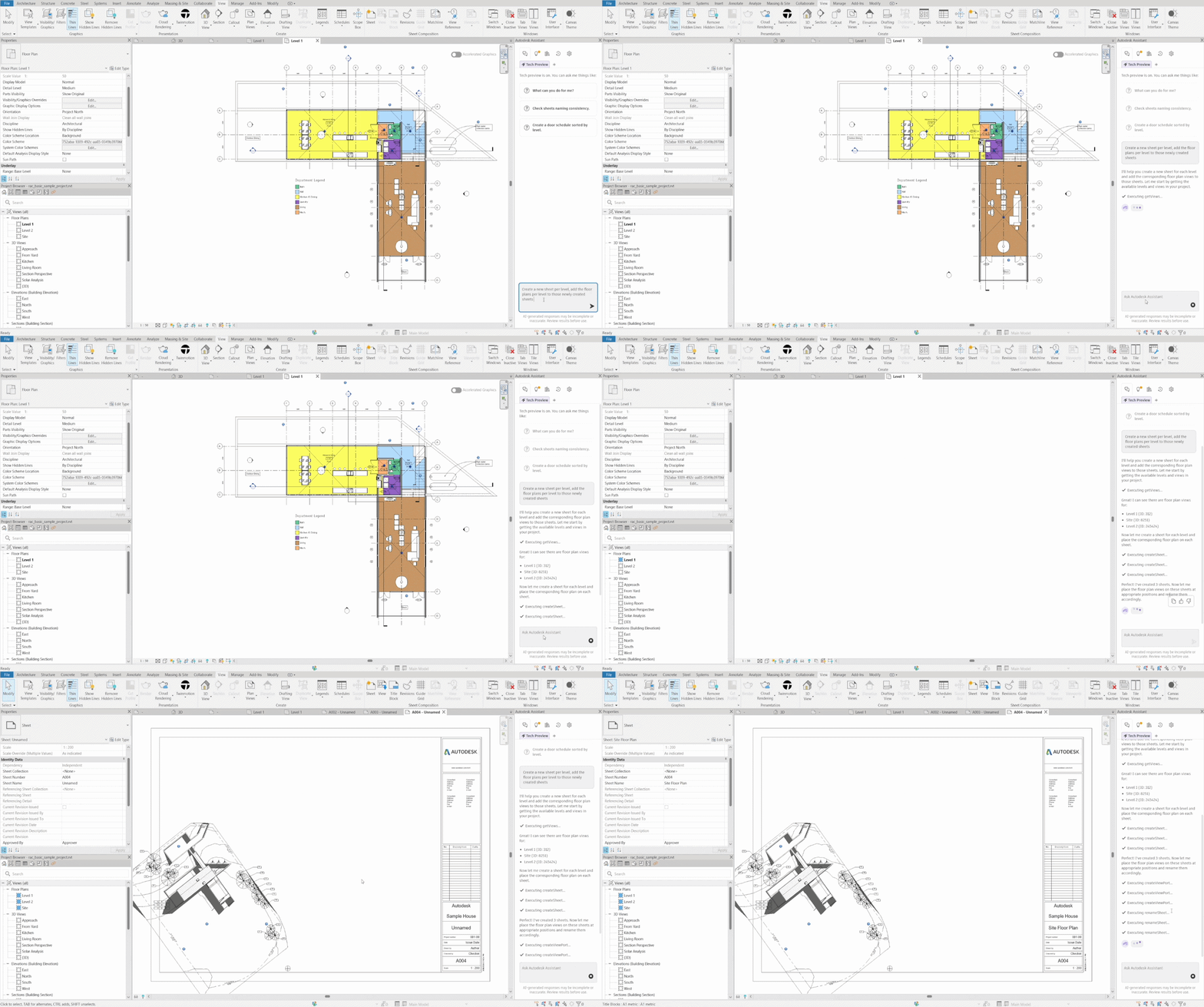
Sheet creation sits at the intersection of important and tedious. One sheet per level, correct floor plan placed and named on each, done manually means creating each sheet individually, placing viewports, adjusting positioning, and renaming.
With Autodesk Assistant, nine Revit operations followed from eight words: three sheet creations, three viewport placements, three renames. The sheets appeared in the project browser in real time as each step completed. The full sequence took under thirty seconds and the execution log is itself a useful feature. Each completed action is confirmed with a checkmark, giving full visibility into what happened before moving on.
One current limitation worth knowing: the assistant handles viewport positioning to the best of its ability but cannot guarantee viewports will be perfectly scaled and fitted to a title block. Layout refinements for print-ready output still need a manual review pass.
Key takeaway: Multi-step orchestration workflows are where the assistant earns its place. A task that would take several minutes of careful manual work becomes a background operation that runs while other work continues.
5. Model Querying and Schedule Creation
The prompt: "Give me a summary of the types of doors we have and the count per type"
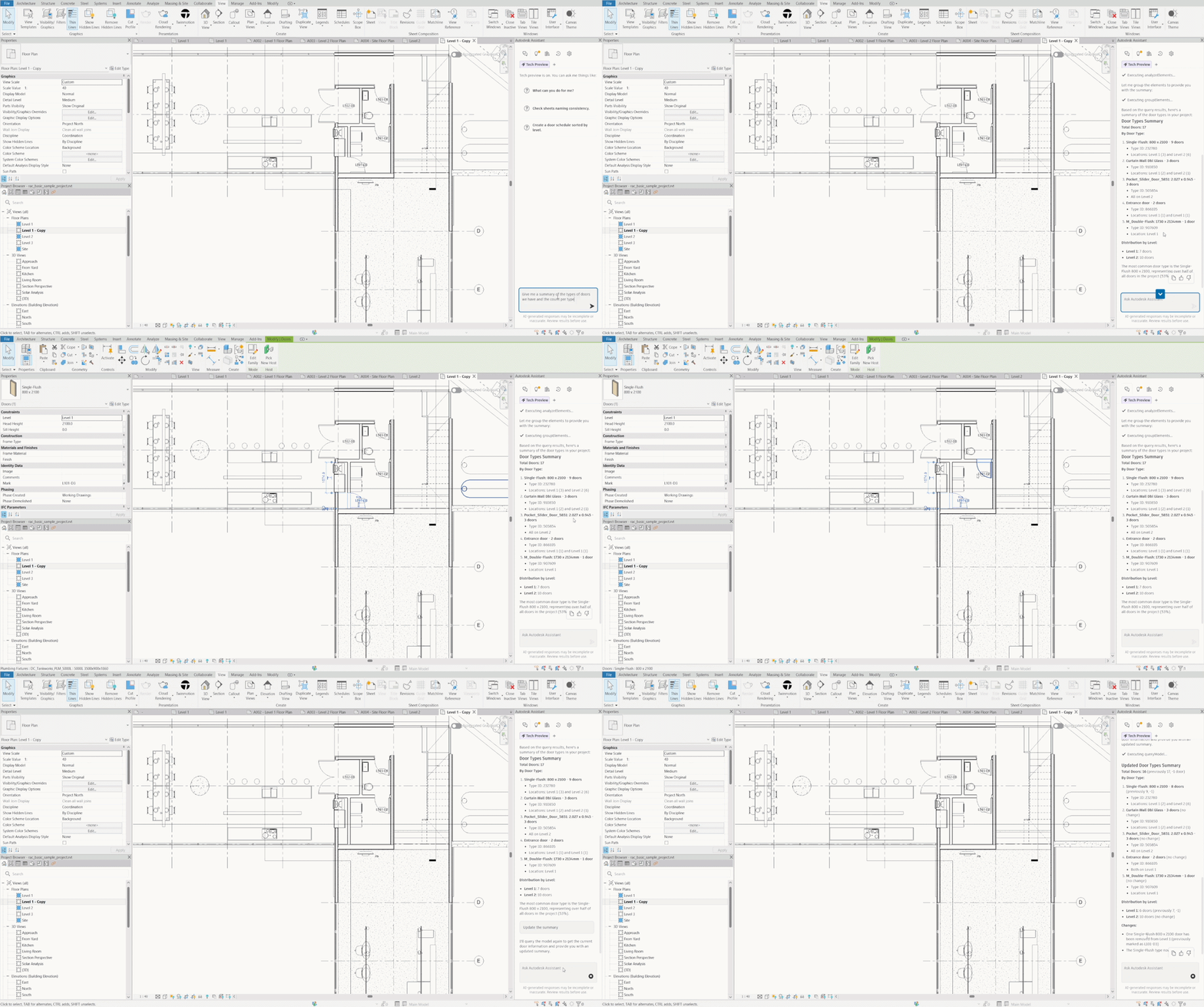
Revit models contain structured data that is, in practice, difficult to access quickly without building schedules or writing Dynamo scripts. The assistant changes that.
The response came back as a clean breakdown: 17 doors across four types, with distribution by level, and a note that the most common type accounted for 53% of all doors in the project. No schedule setup. No filter configuration. No Dynamo.
A follow-up asked the assistant to turn that data into a live Revit schedule. It created a Door Schedule with eight fields (Mark, Level, Family and Type, Width, Fire Rating, Frame Material, Finish, and Comments) and explained why each was included. The schedule appeared in the project browser, ready to place on a sheet or export.
Key takeaway: On-demand access to model data without building a schedule first changes how quickly coordination questions can be answered during a meeting, a review, or a design conversation.
Practical Applications of Autodesk Assistant in Revit Workflow
The consistent theme across these demos is that the Autodesk Assistant does not just make individual tasks faster, but changes what kinds of operations are practical to attempt at all, and how early in a project they can happen.
The most valuable applications are straightforward: documentation exports that required dialog navigation now take a single sentence, sheet sets can be assembled in under a minute, model data is available on demand without building a schedule first, and batch parameter updates that previously required Dynamo can be executed from a single prompt.
None of that eliminates the need for professional judgment. Creating new elements, editing schedule formatting, placing a native Color Fill Legend, and refining viewport placement within a title block all remain manual tasks, the assistant operates within a single open file, and every output still requires review by a qualified architect.
The teams that get the most out of this will not be the ones trying to replace Revit expertise with it. They will be the ones using it to remove the overhead between knowing what needs to happen and making it happen: the dialog navigation, the multi-step setup sequences, the coordination queries that slow down experienced users and block newer ones entirely.
How to Get Started
What is needed: Revit 2027 with the Autodesk Assistant enabled by default. If the panel is not visible on first launch, close and restart Revit. To reopen it at any point, navigate to View, User Interface, Autodesk Assistant.
Before running analysis prompts, consider building out a Prompt Library. Any instruction that works well can be saved and reused across future projects, which compounds the time savings considerably over repeated use.
Good starting prompts to test the connection: ask it to export the current view to PDF, list all rooms with their areas, or give a summary of door types and counts. Once it is returning accurate model data and executing operations cleanly, move to more complex tasks. Start with a single operation before combining multiple requests in one prompt. The more specific the instruction, the more reliable the result.
Final Thoughts
Revit 2027's Autodesk Assistant establishes a direct link between natural language and Revit operations. That connection is the foundation for every workflow the AEC community builds around it as the tool matures beyond its current Preview Release state.
The moments where it acknowledged its own limitations matter as much as the successful outputs. An assistant that is upfront about what it cannot do, offers alternatives, and provides manual instructions as a fallback is far more useful in practice than one that attempts everything and delivers inconsistent results.
For everything else that changed, head to the full Revit 2027 release overview.
--
 BIMsmith is the leading free cloud platform for architects, designers, and building professionals to research, select, and download building product data. Search, discover, compare, and download free Revit families on BIMsmith Market, or build complete, data-rich Revit wall, floor, ceiling, and roof systems faster with the BIMsmith Forge Revit configurator.



Comments