

Detail Shelf is BIMsmith's go-to resource for discovering, previewing, and downloading high-quality construction details from trusted building product manufacturers. Here's your complete guide to browsing, previewing, and downloading details that actually work.
What is Detail Shelf?
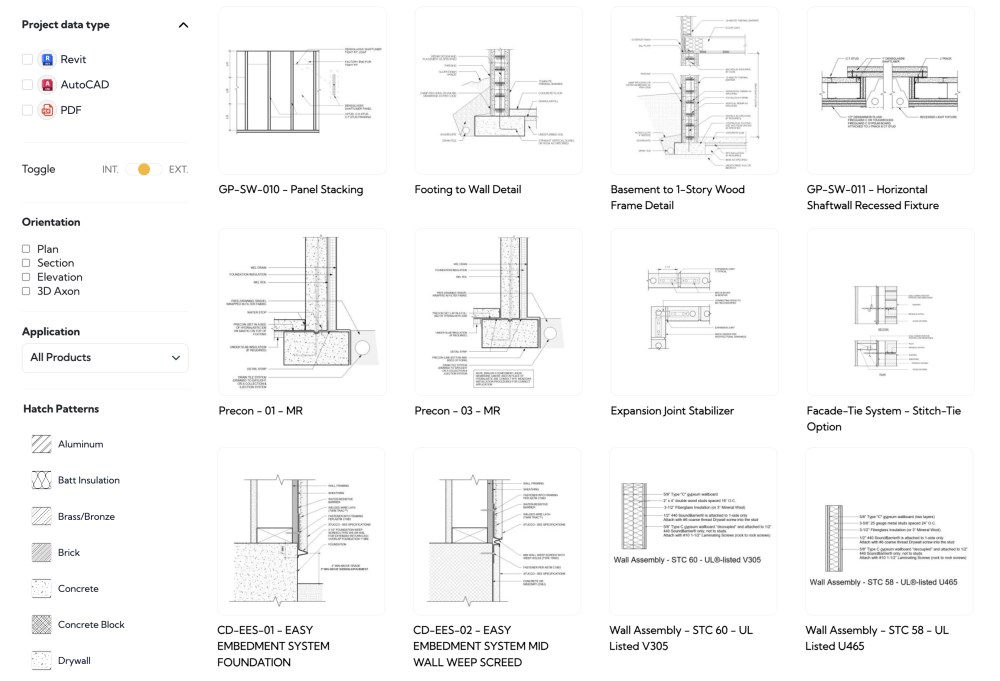
Built for architects by architects, Detail Shelf organizes thousands of manufacturer-provided details with powerful filters and intelligent search, so you can find exactly what you need, faster. Unlike traditional platforms that organize around products, Detail Shelf creates a neural network of data where details and products connect both ways. A single detail can feature multiple products, and products can appear in multiple details.
How to Browse Construction Details
Step 1: Navigate to BIMsmith Detail Shelf
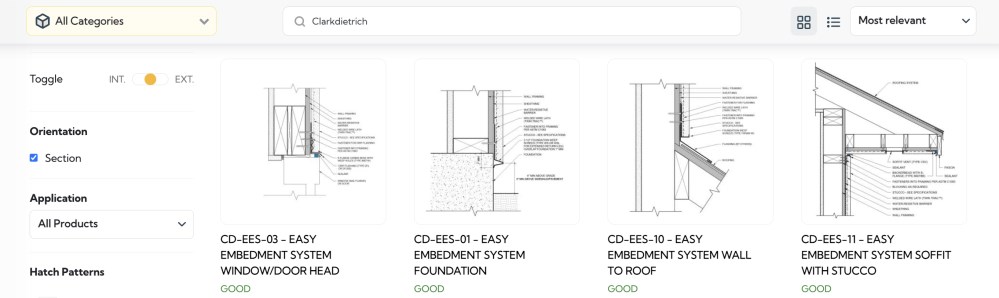
Step 2: Use the robust filtering system on the left to narrow your search:
• File Format (Revit, DWG, or PDF)
• Interior / Exterior
• Orientation (Plan, Section, Elevation or 3D Axon)
• Application
Step 3: Use keyword search at the top to find details by material, manufacturer, or specific assembly type.
The filtering system is built by architects who understand how you actually work. Every detail is tagged with professional-grade metadata so you spend less time searching and more time designing.
How to Preview and Download
Click any detail thumbnail to open the full preview. Here's what you'll see:
• High-quality detail preview (no pixelated thumbnails here)
• Available file formats
• Associated products with direct links to specifications
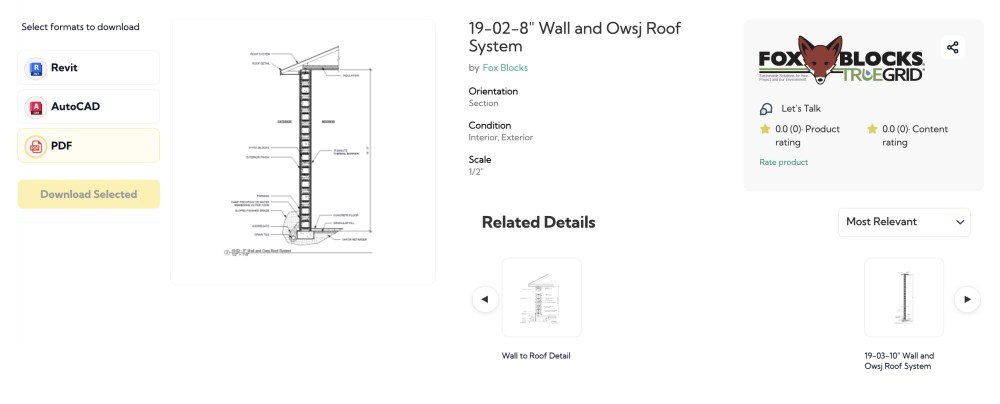
When you're ready to download, select your preferred format. Each detail is professionally prepared and quality-checked through our rigorous process.
How to Insert Details into Revit
With the BIMsmith Revit Plugin installed:
- Click "Insert into Revit" on any detail page
- The detail loads directly into your active project
- Modify as needed to match your project requirements
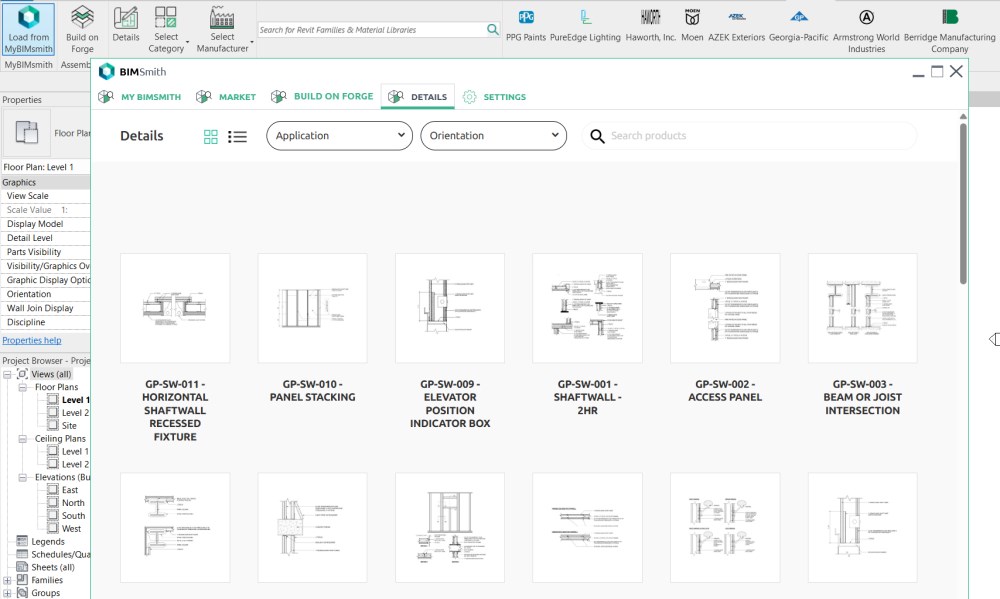
The plugin integration eliminates the typical download-import-adjust workflow. Details insert cleanly and are ready for customization.
Don't have the plugin? Download it here.
Frequently Asked Questions
Q: Is Detail Shelf really free?
A: Yes. Detail Shelf is 100% free for architects and specifiers.
Q: How current is the content?
A: There are thousands of details from multiple leading manufacturers, with new content added regularly. Our manufacturer partners keep their details current, and we maintain quality standards throughout.
Q: Can I request specific details or manufacturers?
A: Absolutely. You can email our team at support@bimsmith.com to request content or suggest a manufacturer.
Q: What's the quality control process?
A: Every detail goes through our professional QA process. We don't just host content; we ensure it meets the standards you expect from BIMsmith.
Q: How does this integrate with my existing workflow?
A: Detail Shelf works with your current tools. Download details in your preferred format, or use our Revit plugin for direct integration. No workflow disruption, just better efficiency.
Need Support?
If you have questions or issues, please reach out to our team: support@bimsmith.com
Click here to learn more about Detail Shelf or try it out from some popular brands:
Georgia-Pacific Details
Fox Blocks Details
Clarkdietrich Details
--
 BIMsmith is the leading free cloud platform for architects, designers, and building professionals to research, select, and download building product data. Search, discover, compare, and download free Revit families on BIMsmith Market, or build complete, data-rich Revit wall, floor, ceiling, and roof systems faster with the BIMsmith Forge Revit configurator.



Comments